

What is a BIOS Update?
A BIOS update, or more accurately a firmware update for the BIOS/UEFI, is a process of upgrading the basic input/output system (BIOS) or its successor, the Unified Extensible Firmware Interface (UEFI), on your computer's motherboard. The BIOS/UEFI is essential firmware that acts as an intermediary between your computer's hardware and the operating system. It initializes hardware components during the startup process (Power-On Self Test or POST) and loads the operating system. Updating this firmware can bring significant improvements to your system.
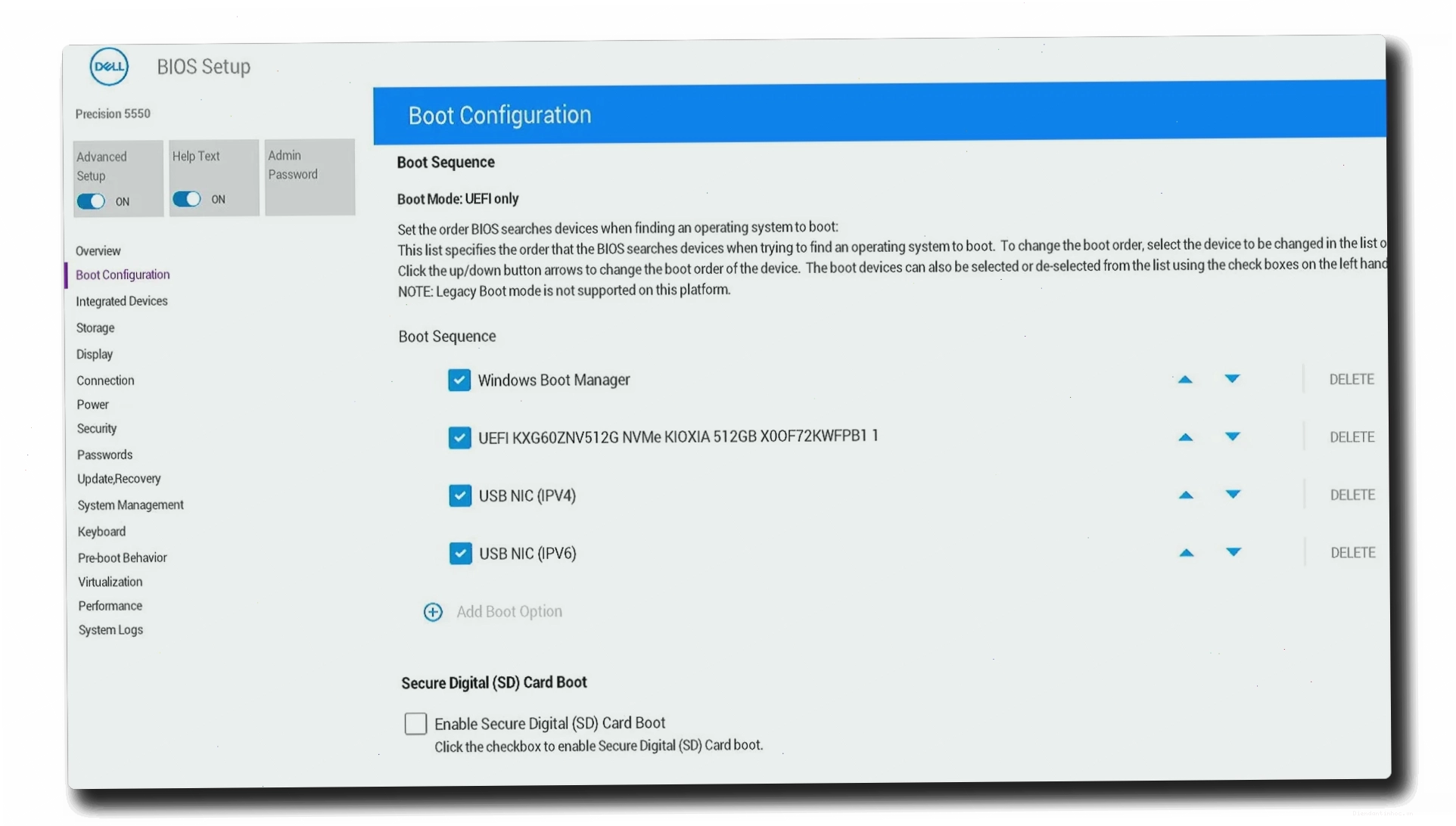
While often referred to as a 'BIOS update', it's important to note that most modern computers use UEFI, which offers faster, more secure booting and enhanced features compared to the traditional BIOS. All newer Dell computers come equipped with UEFI.
Key Takeaways:
- BIOS/UEFI: The fundamental firmware that starts your computer.
- Update Purpose: Enhance performance, fix security flaws, add hardware support, and resolve compatibility issues.
- Caution: BIOS updates are not routine; proceed only when necessary and follow instructions carefully.
Why Update Your BIOS or UEFI?
Updating your BIOS or UEFI firmware is not a routine maintenance task, but it can be crucial for several reasons:
- Improve System Performance: Updates can optimize how your hardware components communicate, potentially leading to a faster and more efficient system.
- Fix Security Vulnerabilities: Like any software, BIOS/UEFI firmware can have security flaws. Updates patch these vulnerabilities, protecting your system from potential threats.
- Add Support for New Hardware: A BIOS update might be necessary to ensure compatibility with newer processors, RAM modules, or other hardware components.
- Resolve Hardware Compatibility Issues: If you're experiencing problems with specific hardware not working correctly, a BIOS update could be the solution.
- Resolve Stability Issues: Updates often include bug fixes that can improve overall system stability and prevent unexpected crashes.
For instance, if you're installing a new CPU or RAM that isn't recognized by your current system, a BIOS update is often required.
Precautions to Take Before Updating
A failed BIOS update can be catastrophic, potentially rendering your motherboard unusable. Therefore, strict precautions are necessary:
- Backup Important Data: While a BIOS update doesn't directly affect your stored data, a system failure during the process could necessitate a full system restore. Always back up critical files.
- Ensure Stable Power: This is non-negotiable. For laptops, ensure the battery is fully charged and the AC adapter is plugged in. For desktops, use an Uninterruptible Power Supply (UPS) or ensure a stable power source. A power outage during the update can corrupt the firmware.
- Close Background Programs: Before initiating the update process, close all unnecessary applications running in the background. This minimizes the risk of software interference.
- Download the Correct Update: Ensure you download the BIOS update file specifically designed for your exact computer model and motherboard. Using an incorrect file can cause severe damage.
Checking Your Current BIOS/UEFI Version
Before updating, it's essential to know your current BIOS/UEFI version. Here are several ways to check:
Using the BIOS/UEFI Settings Menu
- Turn on or restart your computer.
- Repeatedly press the designated key (commonly F2, DEL, or F10) during the initial boot screen to access the BIOS/UEFI settings.
- Once inside the BIOS/UEFI interface, look for information labeled 'BIOS Version', 'Firmware Version', or similar, usually found under an 'Overview', 'System Information', or 'Main' tab.
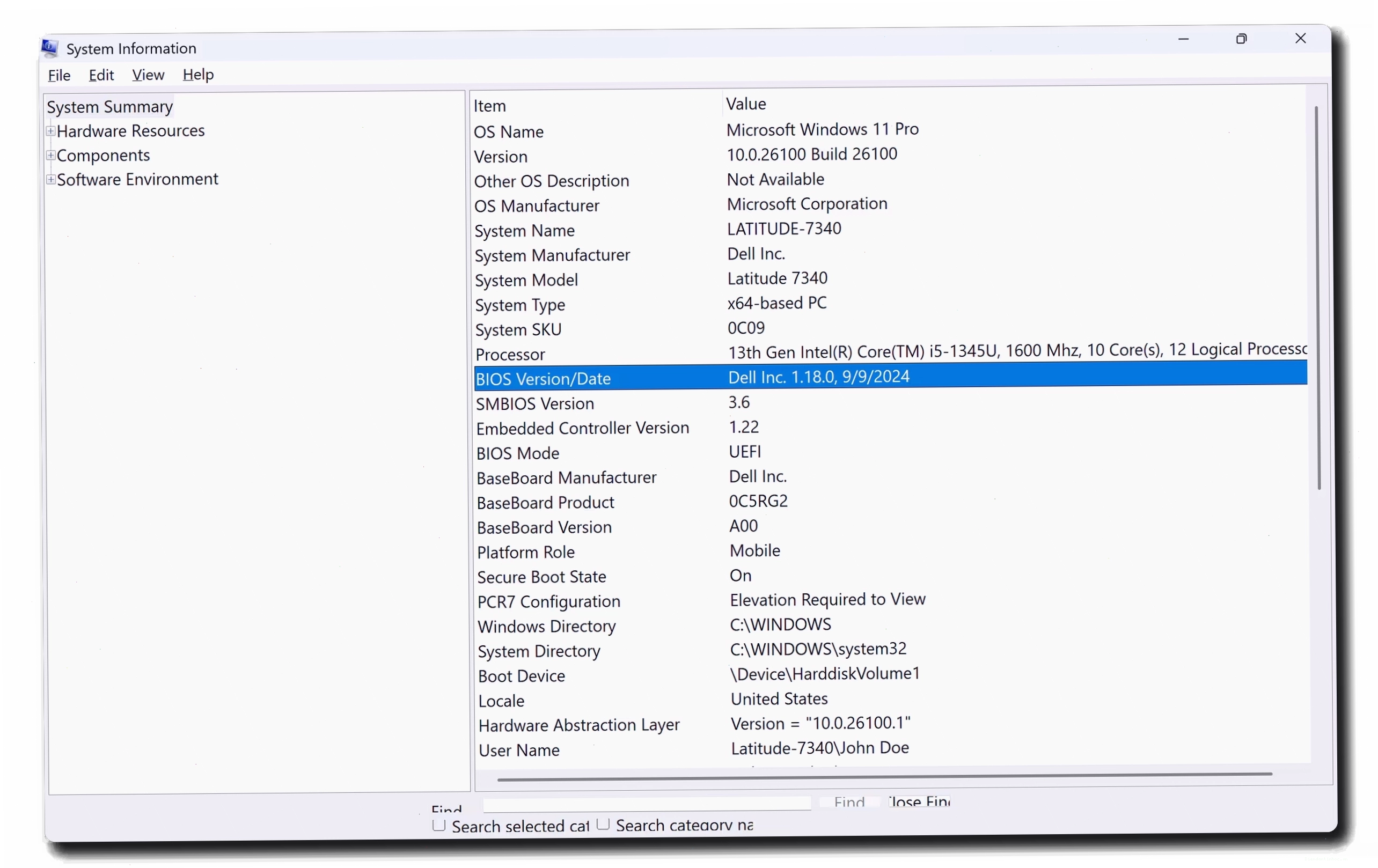
Using System Information Tool in Windows
- Press the Windows key + R to open the Run dialog box.
- Type
msinfo32and press Enter. - In the System Information window, find the 'BIOS Version/Date' entry to see your current BIOS version and the date it was released.
Using Command Prompt in Windows
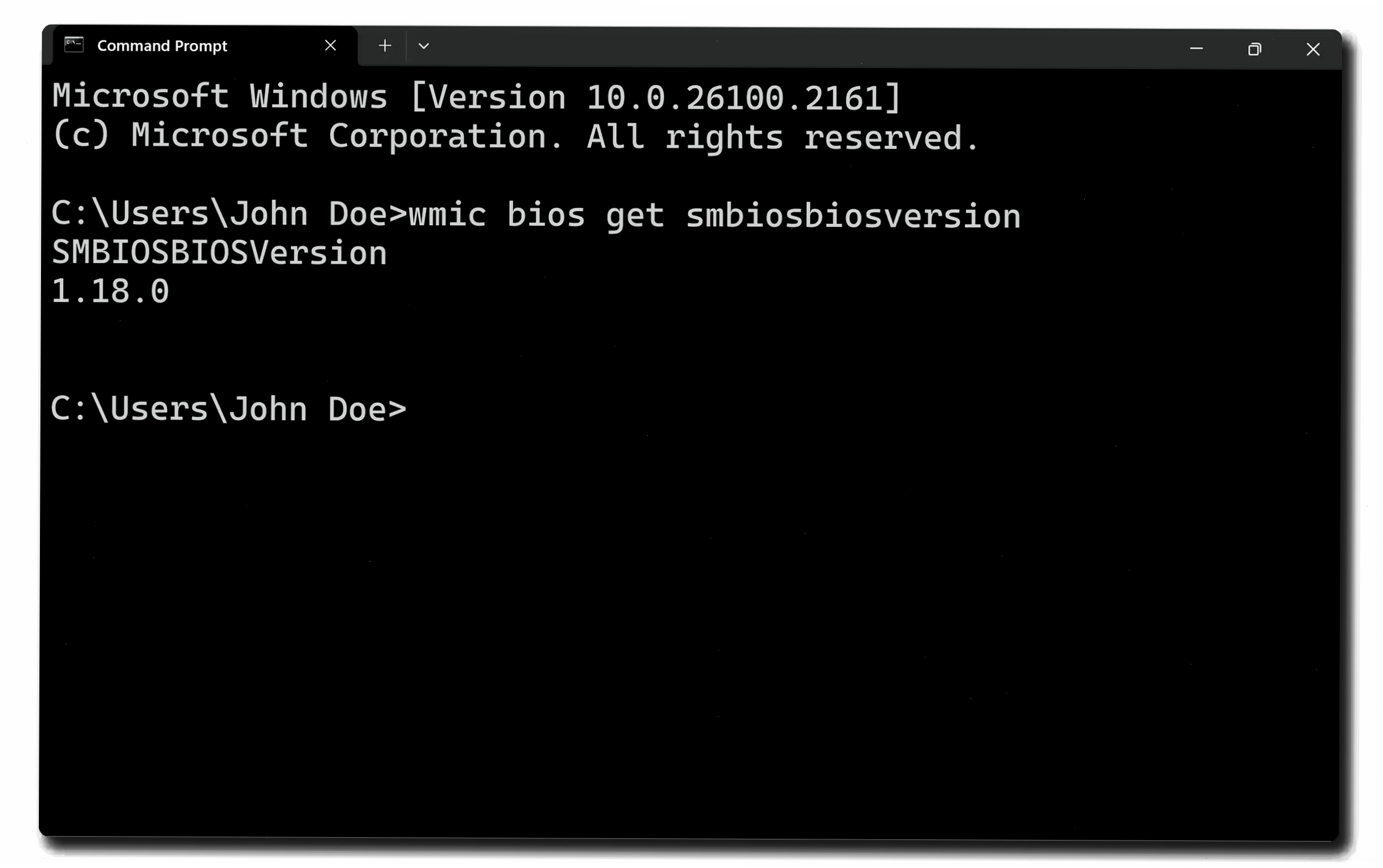
- Open Command Prompt by searching for 'cmd' in the Start menu.
- Type the command:
wmic bios get smbiosbiosversion - Press Enter. The command prompt will display your BIOS version.
Methods to Update BIOS/UEFI
There are several convenient methods to update your BIOS/UEFI, allowing you to choose the one that best suits your comfort level and technical expertise.
Method 1: Updating through SupportAssist
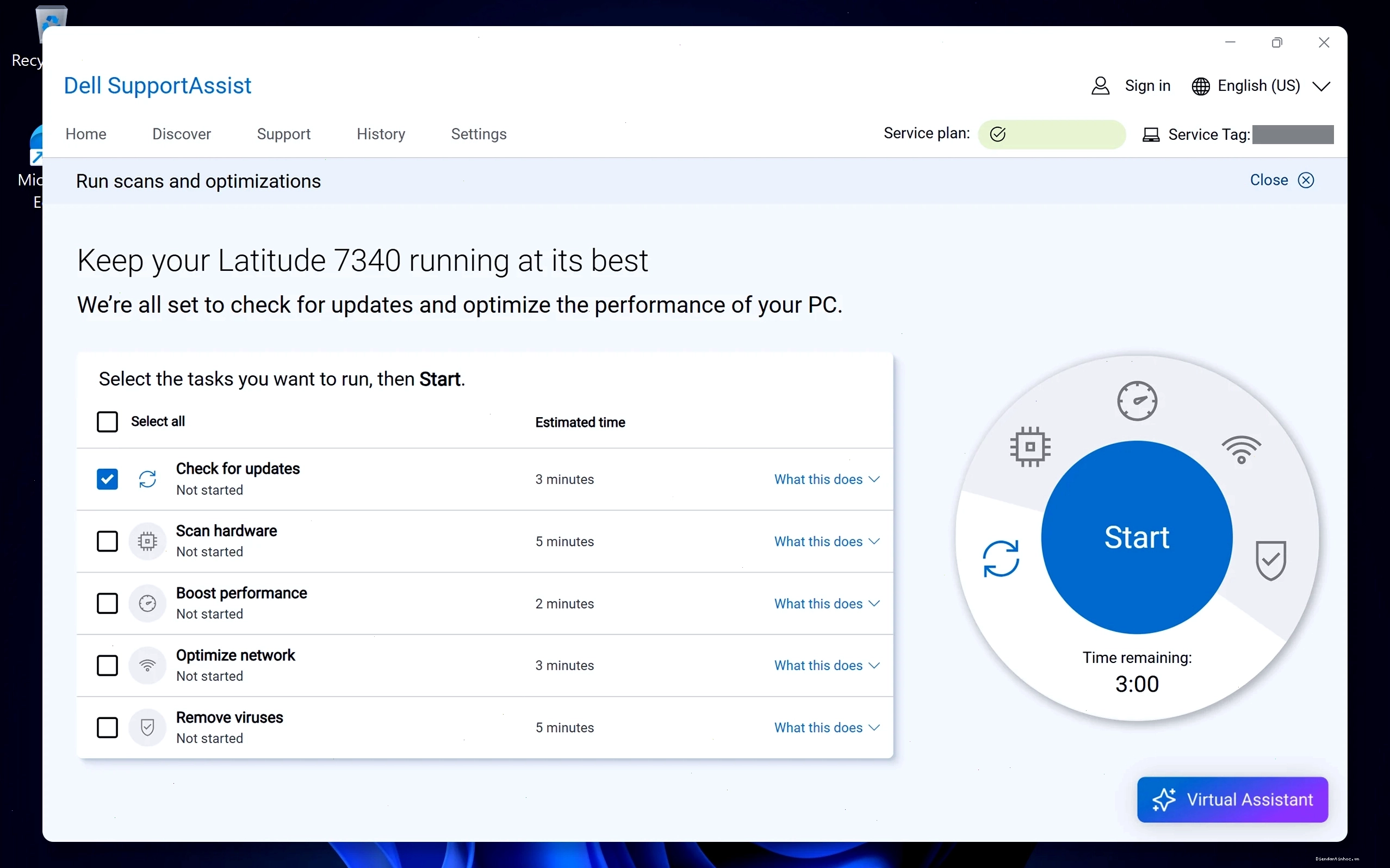
Dell's SupportAssist is an automated tool designed to scan your system for updates, including BIOS updates, and install them seamlessly. This is often the easiest method for Dell users.
- Search for 'SupportAssist' in the Windows Start menu and open the application.
- On the Home tab, select 'Update software'.
- Click 'Start' to allow SupportAssist to scan for available updates, including BIOS.
- Follow the on-screen prompts to download and install any detected BIOS updates. Ensure your system remains powered during this process.
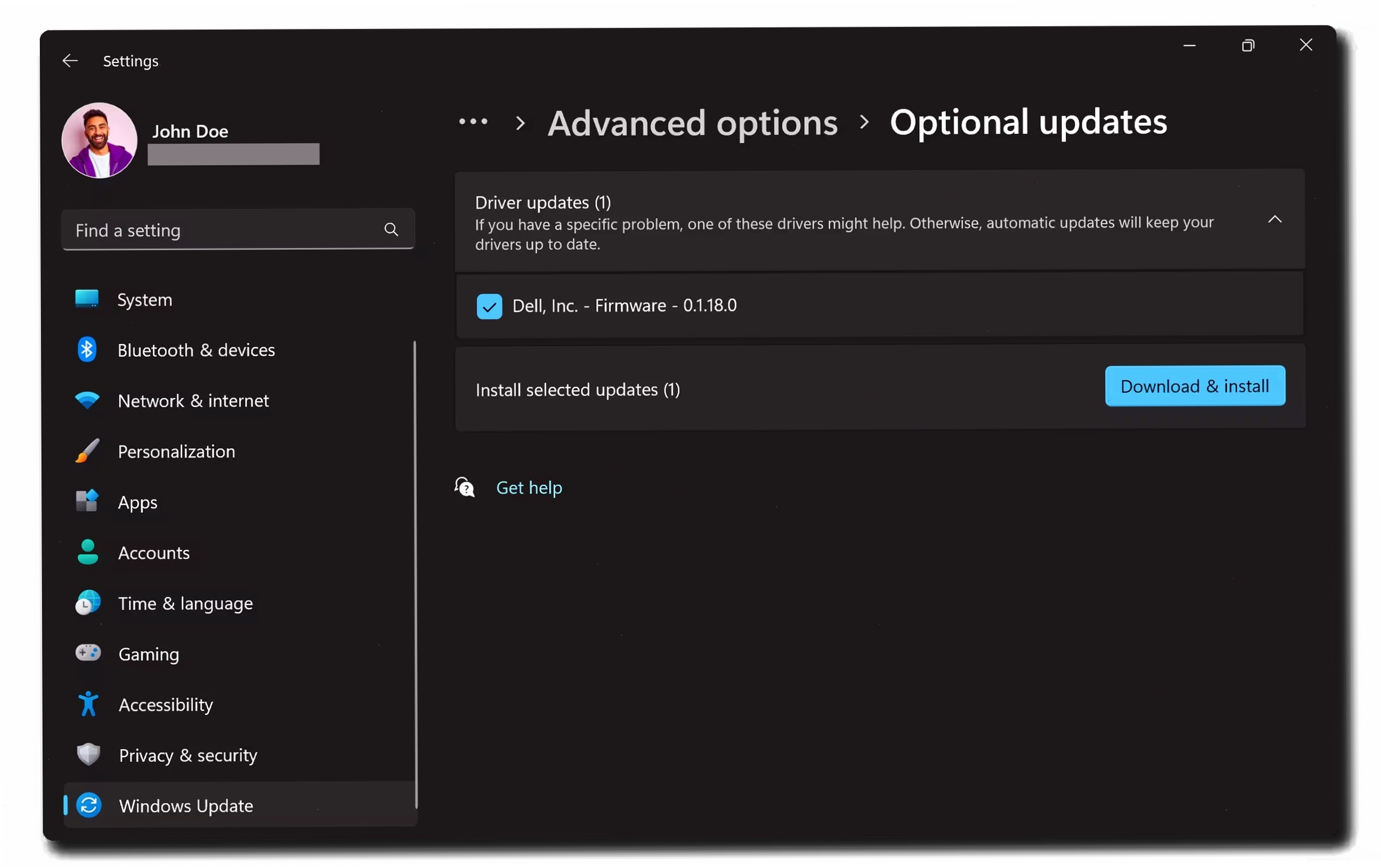
Method 2: Updating through Windows Update
Some manufacturers, including Microsoft and other hardware vendors, may offer BIOS updates through Windows Update. This is a convenient way to keep your system updated if available.
- Go to Settings > Windows Update.
- Click on Advanced options.
- Look for Optional updates and expand it.
- If a BIOS update is listed, select it and proceed with the installation.
Method 3: Updating through Standalone BIOS Update Utility
Many manufacturers provide a standalone executable file that you can download and run from within Windows to update the BIOS. This utility guides you through the process.
- Visit your computer manufacturer's support website (e.g., Dell, HP, Lenovo, Asus).
- Navigate to the support or downloads section for your specific model.
- Download the latest BIOS update utility.
- Run the downloaded executable file within Windows and follow the on-screen instructions carefully. Ensure stable power.
Method 4: Updating Using a USB Flash Drive (Outside Windows)
This method is often recommended for its stability as it runs independently of the operating system. It's particularly useful if you're experiencing issues booting into Windows.
- Download the BIOS update file (usually a .exe or .zip) from your manufacturer's support site.
- If it's a .zip file, extract its contents, which typically include a BIOS file (e.g., .ROM, .CAP) and possibly a utility to create a bootable USB drive.
- Format a USB flash drive (usually FAT32).
- Copy the extracted BIOS file(s) to the root of the USB drive.
- Restart your computer and enter the BIOS/UEFI setup (usually by pressing F2, DEL, or F10 during boot).
- Look for an option like 'BIOS Update Utility', 'EZ Flash', 'Q-Flash', or 'M-Flash'.
- Select the BIOS file from the USB drive and initiate the update process. Do NOT interrupt this process.
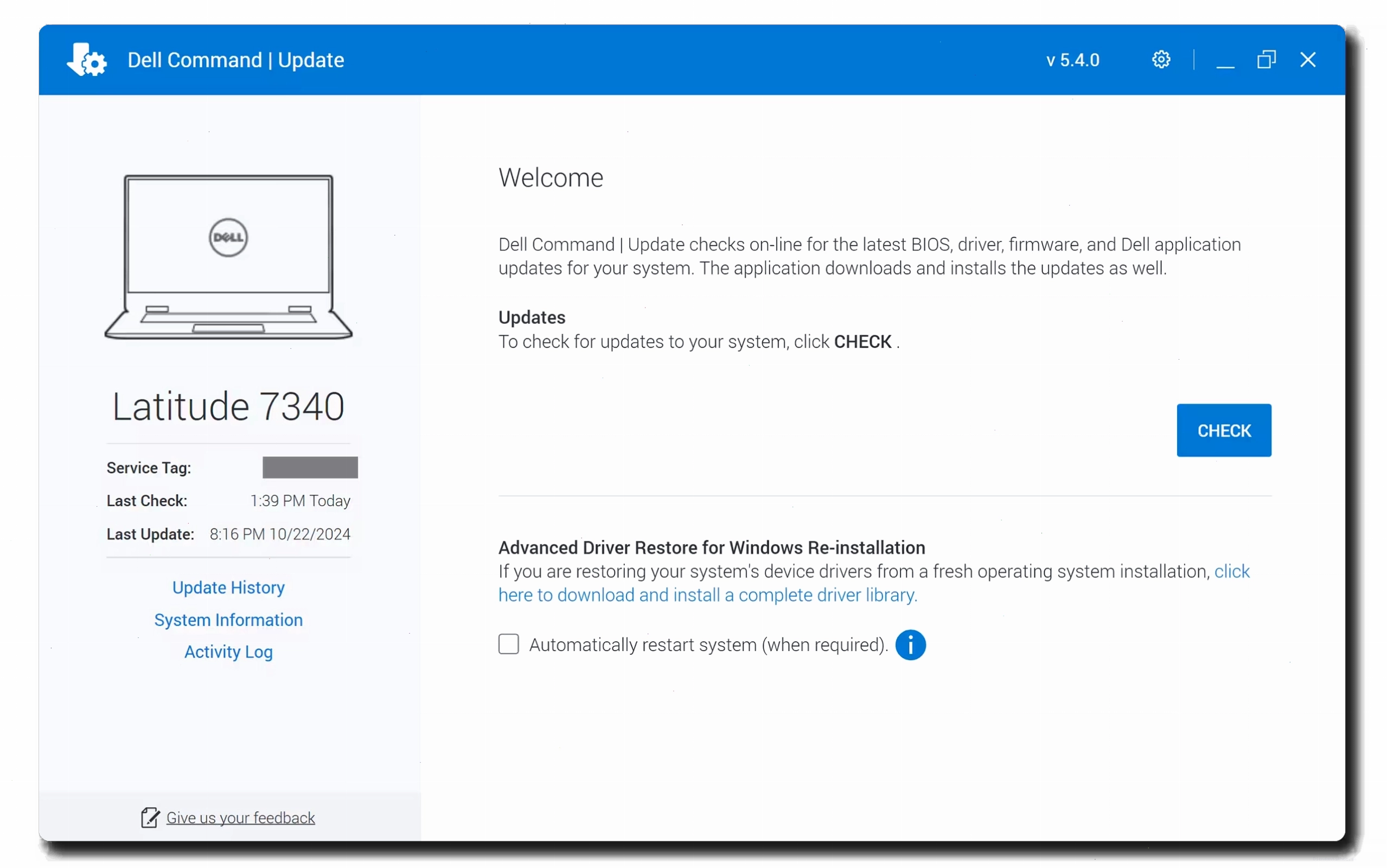
Method 5: Updating through Dell Command | Update
Dell Command | Update is a software package that automates driver, BIOS, and firmware updates for Dell business client systems. It's a command-line utility or can be integrated with a GUI.
- Download and install Dell Command | Update from the Dell support website.
- Run the application and allow it to scan for available updates.
- Select the BIOS update option and proceed with the installation.
Method 6: Updating through Over-The-AIR (OTA) or Remote Updating
For enterprise environments, methods like Dell's BIOSConnect or other remote management solutions allow for BIOS updates over the network or wirelessly, often managed by IT administrators.
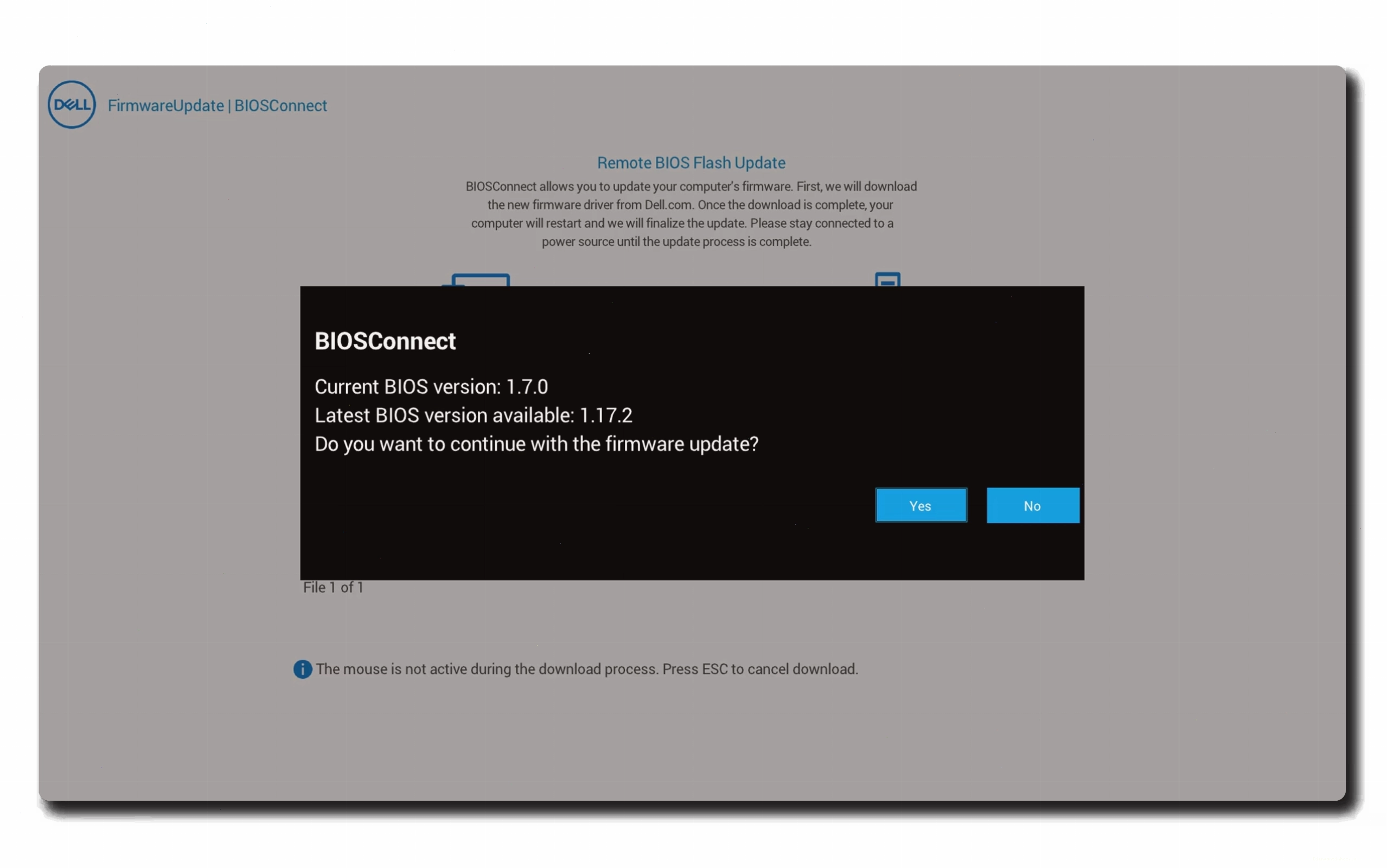
The specific steps for OTA or remote updates depend heavily on the management software and hardware infrastructure in place.
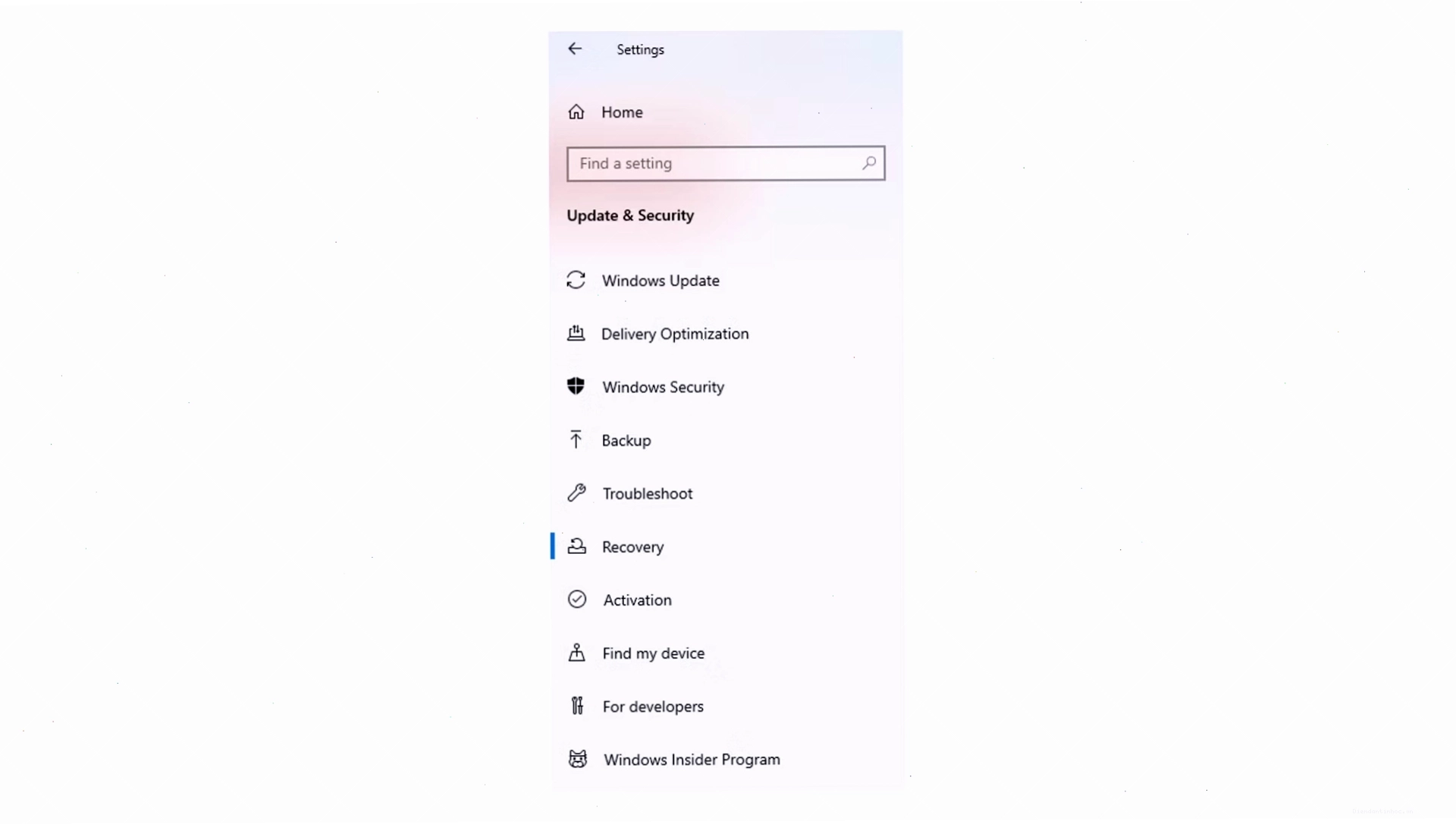
Accessing the BIOS from Windows
If your PC boots up too quickly to catch the keyboard command for BIOS access, you can access it through Windows settings, particularly on Windows 10 and 11.
- Open the Settings app.
- Navigate to System > Recovery.
- Under the 'Advanced startup' option, click Restart now.
- Your computer will reboot into a special menu. Select Troubleshoot > Advanced options > UEFI Firmware Settings.
- Click Restart again, and your computer will boot directly into the BIOS/UEFI setup.
This method ensures you can access your BIOS settings even if you miss the initial boot prompts.
What Does BIOS Mean?
BIOS stands for Basic Input/Output System. It's a type of firmware stored on a small chip on your motherboard. Its primary role is to initialize hardware components when you turn on your computer and load your operating system. The BIOS performs the crucial Power-On Self Test (POST) to check if all hardware is functioning correctly before handing over control to the OS. Users can enter the BIOS menu during POST to configure low-level hardware settings, such as boot drive order, CPU overclocking, and enabling features like Intel® Extreme Memory Profile (Intel® XMP) for RAM.
Conclusion
Understanding what a BIOS update is and knowing when and how to perform one is a valuable skill for any computer user. While not a routine procedure, updating your BIOS/UEFI can significantly improve your system's performance, security, and compatibility. Always prioritize safety by backing up data, ensuring stable power, and downloading the correct update file for your specific model. By following these guidelines, you can confidently manage your computer's firmware and keep your system running optimally.
If you're experiencing persistent hardware issues or planning significant hardware upgrades, consider performing a BIOS update after careful research and preparation. For more detailed guidance tailored to your specific hardware, always refer to your computer manufacturer's official support documentation.